Usamos cookies essenciais para o site funcionar. Com a sua permissão, também usamos cookies de análise (medir visitas) e de publicidade (anúncios e remarketing). Nada disso é ativado até você escolher. Política de privacidade
Na aba “Agente”, você conversa com a IA em português e ela cria, altera e testa a automação para você. Você descreve a rotina; o agente lê o projeto, usa o Google Chrome e o computador quando precisa, mostra o que mudou e pede a sua aprovação nas ações importantes. Quem aperta “Executar” continua sendo você.
O agente roda com a sua chave de API, de um destes provedores: OpenAI, Anthropic, Google (Gemini), xAI, DeepSeek, Qwen, Moonshot (Kimi), Z.AI ou CompactifAI. Você escolhe o modelo, e o uso dele é cobrado nessa chave, pelo provedor. A chave fica só neste computador; a PYE Tech não a recebe.
Dois nomes que vão aparecer muito. A automação (ou robô) é o projeto que roda e faz o trabalho repetitivo: baixar boletos, preencher um sistema, ler PDFs. O Agente é esta aba de chat, que cria e altera automações. O agente sempre trabalha no projeto que está aberto, e o nome dele aparece no topo da conversa, em “PROJETO ABERTO”.
Do pedido ao robô rodando, o caminho tem sete passos. Os nomes entre aspas são os textos exatos da tela.
Abra ou crie a automação
Na aba “Automação”, clique em “Abrir automação” ou em “Criar automação” e escolha um dos modelos REFRAMEWORK (Automação simples, Dispatcher, Performer ou Disperformer). Veja Criar uma automação.
Vá para a aba “Agente”
No topo da conversa, confira o nome em “PROJETO ABERTO”. É nesse projeto que o agente vai mexer.
Abra uma conversa e escolha o modelo
Com a sua chave de API conectada, abra uma conversa nova no “+” da coluna “Conversas”. No seletor de modelo, escolha o modelo que vai trabalhar; sem escolha, vale o “Modelo padrão do Chat IA”. Veja Modelo e chave de API.
Descreva a rotina
Escreva o que o robô deve fazer, como você explicaria a um colega, ou clique numa das “Ideias para o seu próximo processo”. A ideia preenche a mensagem, e você ajusta antes de enviar.
Deixe o modo em “Build” e envie
“Build · Cria, altera e testa a automação.” Acompanhe as frases de progresso e responda se o agente fizer uma pergunta.
Confira e aprove
Aprove ou recuse cada “Ação importante”, veja o que mudou em “Alterações” e, se não gostar, use “Reverter”. Veja Ver, aprovar e desfazer.
Clique em “Executar”
O agente não inicia a execução pelo chat. Ele pede que você clique em “Executar” e acompanha a tela e o Chrome enquanto o robô roda. Veja Computer Use no Windows.
Um bom pedido conta quatro coisas: onde o trabalho começa, o que o robô faz em cada item, onde o resultado fica e o que fazer quando der errado. Exemplo: “Todo dia, leia os e-mails com boleto, baixe o PDF, lance cada boleto no ERP e, se um boleto não tiver vencimento, me avise.”
A tela do Agente
Antes das partes, veja o Agente trabalhando. A cena reproduz as telas do Curator 3.2.3, do pedido ao robô rodando.
INFO Initialization · Config.xlsx carregado, fila ContasAPagar validada
INFO GetTransactionData · 12 boletos encontrados no Outlook
INFO ProcessTransaction · boleto 3 de 12 lançado no ERP
ERRO ProcessTransaction · botão “Salvar” não encontrado: a tela do ERP mudou
CURADOR olhou a tela, ajustou o seletor e testou a correção
CURADOR reexecutou o item 4: sucesso
INFO ProcessTransaction · 12 de 12 boletos lançados
INFO EndProcess · relatório enviado por e-mail
Curador assumiuA automação quebrou com erro técnico
1Pausou o robô no erro e olhou a tela
2Consertou o código e testou
3Reexecutou o item que quebrou
Executar com Chave de API · cobrado na sua chave
ProntoConectado | Workspace de PYE Tech | v3.2.3
Um pedido vira robô: o agente lê o projeto, age no Chrome e pede aprovação antes de gravar. Depois, na aba “Automação”, uma etapa quebra e o Curador conserta. O processo de boletos é só um exemplo.
A tela, parte por parte
Com um projeto aberto e nenhuma mensagem enviada, a aba “Agente” mostra a pergunta “O que vamos automatizar hoje?”. Estas são as partes da tela:
Conversas
A lista das suas conversas. Cada uma mostra o título e a idade (“13d”, por exemplo). O “+” abre uma conversa nova e o “<” recolhe a coluna.
Contexto atual, Tokens e Custo
No rodapé da coluna, “Contexto atual” mostra quanto da memória de trabalho do modelo a conversa já ocupa (por exemplo, “33%” e “65.9K / 200K”). “Tokens” mede o volume, e “Custo” acompanha o custo calculado da conversa na sua chave de API. Veja Contexto e custo.
PROJETO ABERTO
O projeto em que o agente vai mexer. Confira o nome antes de pedir qualquer alteração.
“Exportar” e “Indicar na tela”
Os dois botões do cabeçalho. “Indicar na tela”, com ícone de monitor e contorno verde, serve para você indicar na tela o que a IA deve olhar. Ao lado fica “Exportar”.
“O que vamos automatizar hoje?”
A tela vazia, com o mascote: “Em <projeto>, descreva sua rotina ou escolha uma ideia para começar.”
Tokens e custo da conversa
Logo acima do campo: os chips “Tokens” e “Custo” da conversa e a porcentagem do contexto, em verde.
Campo de mensagem
“Peça para criar ou alterar uma automação… Use @ para mencionar arquivos”. O “+” anexa arquivos, o “@” aponta um arquivo do projeto pelo nome e o botão verde envia.
Controles
“Voz desligada” (liga a narração por voz), o modo (“Build”, com Plan e Chat), “Permissões totais” (botão laranja com escudo) e o seletor de modelo, com o modelo que você escolheu, do provedor da sua chave de API. Embaixo, a legenda do modo: “Build · Cria, altera e testa a automação.”
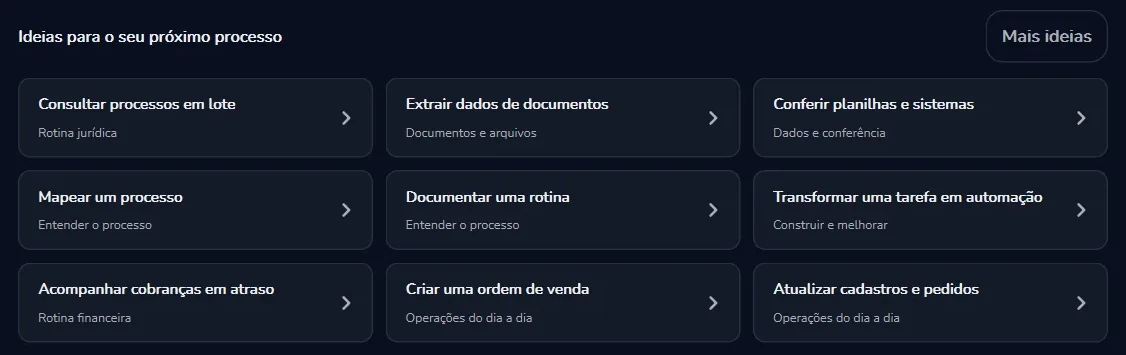
Ideias para o seu próximo processo
Nove pontos de partida prontos e o botão “Mais ideias”. “Uma ideia preenche a mensagem. Você pode ajustar antes de enviar.”
As nove ideias
Sem saber por onde começar? Cada ideia traz o tipo de rotina embaixo. Clique, leia a mensagem que ela preencheu e troque os detalhes pelos do seu processo.
As nove “Ideias para o seu próximo processo”, cada uma com o tipo de rotina embaixo.
“Mapear um processo” e “Documentar uma rotina” servem para entender e registrar o processo antes de automatizar. “Mais ideias” mostra outras.
Conversas
Use uma conversa por assunto. Mudou de tarefa, abra outra no “+”. Assim o agente se concentra no que importa e a barra de contexto não enche à toa.
Cada conversa mostra o título e a idade, como “13d”. Todas usam a sua chave de API, com o modelo que você escolher no seletor de modelo. Veja Modelo e chave de API.
O histórico é local. Suas conversas e anexos ficam no histórico local do Curator, neste computador.
Build, Plan e Chat
O modo diz o que o agente pode fazer naquele pedido. É o controle mais importante da conversa: modo errado é a causa número um de “a IA não fez nada” ou “a IA mexeu onde eu não queria”. Ele fica embaixo do campo de mensagem, com a legenda do modo logo abaixo.
Modo
O que faz
Quando usar
Build
“Cria, altera e testa a automação.” É o único modo que muda o projeto. O que mudou aparece em “Alterações” e pode ser desfeito.
Você já sabe o que quer e quer que seja feito.
Plan
Lê o projeto e escreve um plano. Não altera a automação.
Tarefa grande, mais de um caminho possível, ou um robô que você ainda não conhece.
Chat
Só conversa. Não abre nem altera os arquivos do projeto.
Tirar uma dúvida rápida.
Build · Plan · Chat
PROJETO ABERTOContas a Pagar
Arquivos do projetoFramework/Process.pyConfig.xlsxData/Output
Alterações
Voz desligadaBuildBuildPlanChatPermissões totaisDeepSeek V4 Flash
Build · Cria, altera e testa a automação.
Passe o mouse para pausar. Clique para ver de novo.
O caminho recomendado
Pergunte em ChatQuando for só uma dúvida, o Chat responde sem mexer no projeto.
Combine em PlanQuando a tarefa for grande, peça um plano. Leia; se não era isso, peça outro.
Execute em BuildTroque o modo para Build e responda “pode seguir com o plano”.
Confira em “Alterações”Se errou, use “Reverter” e recomece. Desfazer custa menos do que remendar em cima do erro.
Permissões totais
Ao lado do modo fica um botão laranja com um escudo: “Permissões totais”. Olhe para ele antes de pedir algo delicado.
A execução é suaO agente não inicia a execução pelo chat. Quem clica em “Executar” é você.
O que mudou no projeto fica em “Alterações”Confira o antes e o depois e, se precisar, desfaça com “Reverter”. No Outlook, alterações na caixa pedem a sua confirmação no chat.
Antes de pedir algo que mexe em sistema de verdade (um ERP, um portal, a caixa de e-mail), confira o botão de permissões e o nome em “PROJETO ABERTO”. Na dúvida, comece em Plan: o agente mostra o plano antes de mexer em qualquer coisa.
Ver, aprovar e desfazer
Você não precisa confiar na IA às cegas. Enquanto ela trabalha, a conversa mostra cada passo; o que é importante espera o seu sim; e o que mudou pode ser conferido e desfeito.
Acompanhar, aprovar, conferir, desfazer
PROJETO ABERTOContas a Pagar
Grave também o vencimento na planilha.
Ação importanteAguardando decisão
Gravar alterações em Framework/Process.py e Config.xlsx
AprovarRecusar
✓ Aprovado
Trabalhou por 41s
Alterações
Framework/Process.py
- planilha.write(nome, valor)
+ planilha.write(nome, valor, vencimento)
Nenhuma alteração ainda
ReverterRestaurar
Passe o mouse para pausar. Clique para ver de novo.
1. Acompanhe enquanto ele trabalha
Acima do campo, uma frase curta diz o que está acontecendo:
Frase na tela
Em linguagem simples
“Pensando…”
Ainda raciocinando, sem mexer em nada.
“Lendo arquivos…”
Abrindo os arquivos do projeto para entender o robô.
“Preparando alterações no código…”
Escrevendo o que vai mudar.
“Validando a automação…”
Conferindo se o resultado funciona.
“Aguardando você…”
Parou e precisa da sua resposta ou aprovação.
As ações aparecem em linhas que abrem e fecham, como “› Em 1 ação no Chrome”, que vira “› Executou 1 ação no Chrome” quando termina. Nas respostas, nomes de arquivo e pasta aparecem em verde, como Config.xlsx e Data/Output, e o texto vem organizado em partes como “O que verifiquei”, “Antes de rodar” e “Próximo passo”. No fim, “Trabalhou por” mostra quanto tempo levou.
2. Aprove: o cartão “Ação importante”
Algumas ações não acontecem sem a sua autorização. O trabalho para, a frase vira “Aguardando você…” e aparece o cartão “Ação importante”, com o que o agente quer fazer e dois botões: “Aprovar” e “Recusar”. Leia, decida e o trabalho continua. Recusou? Diga na conversa o que prefere.
3. Veja: “Alterações”
Sempre que o agente mexe nos arquivos do projeto, aparece “Alterações”: o antes e o depois de cada arquivo. Não é preciso entender código. Olhe o que entrou e o que saiu e pergunte se faz sentido para o processo. Se tiver dúvida, pergunte na própria conversa: “o que essa alteração faz?”.
4. Desfaça: “Reverter” e “Restaurar”
“Reverter” desfaz as alterações do agente desde a sua última mensagem. “Restaurar” recoloca o que foi desfeito: é o desfazer do desfazer. Quando a conversa descarrilar, volte ao ponto em que estava certo e refaça o pedido de outro jeito.
O “Reverter” cobre os arquivos do projeto e a conversa. Ele não desfaz o que já saiu do seu computador, como um e-mail enviado ou um dado gravado em outro sistema. Por isso essas ações passam pela sua aprovação antes.
Perguntas ao operadorNovo na 3.2
Quando falta uma informação ou há mais de um caminho, o agente pergunta em vez de adivinhar. A pergunta vai para o operador, a pessoa que está usando o Curator. Na conversa aparece o cartão “A IA precisa de uma resposta” e a frase de progresso fica em “Aguardando você…”. Escolha uma das opções ou escreva a sua resposta; o trabalho continua de onde parou.
Exemplos do tipo de pergunta que pode aparecer:
“Qual coluna da planilha tem o número do pedido?”
“O portal pede um segundo fator de login. Como você quer seguir?”
“Encontrei três boletos sem vencimento. Pulo esses itens ou paro a automação?”
“A IA precisa de uma resposta”Uma pergunta. Você escolhe uma opção ou escreve a sua. Serve para tirar a dúvida antes de o agente seguir.
“Ação importante”Um pedido de autorização. Você clica em “Aprovar” ou “Recusar”. Serve para liberar, ou barrar, uma ação que o agente quer fazer.
Uma pergunta a mais é melhor do que uma alteração errada. Responda com o mesmo cuidado de um pedido: uma resposta clara e com o detalhe certo poupa uma volta inteira.
O Chrome e a sua tela
Muito processo passa por um site: o portal do banco, o sistema do fornecedor, o ERP na web. Na 3.2.3, o agente usa o Google Chrome de verdade, conectado ao Curator por uma extensão. Não existe mais navegador embutido: “O Curator abre uma janela e conecta automaticamente.”
Peça na conversa
Por exemplo: “abra o portal do fornecedor e confira a tela de boletos”. Você também pode abrir o Chrome pelo ícone do Chrome na “Coluna de coleta”.
O Curator abre e conecta o Chrome
Ele abre uma janela do Google Chrome e conecta sozinho, pela extensão.
Acompanhe as ações
Enquanto age na página, a conversa mostra “› Em 1 ação no Chrome”; no fim, “› Executou 1 ação no Chrome”. Clique na linha para abrir o detalhe.
Use o que ele viu
Em Build, o agente usa o que viu na página para montar ou ajustar a automação e testá-la. Na resposta, ele conta o que verificou e o próximo passo.
O agente no Google Chrome de verdade
PROJETO ABERTOContas a Pagar
Abra o portal do fornecedor e confira a tela de boletos.
Em 1 ação no ChromeExecutou 1 ação no Chrome
O que verifiquei
A lista de boletos abre depois do login. Cada linha tem um botão de baixar.
Próximo passo
Vou incluir esta tela no fluxo em Framework/Process.py.
Portal do fornecedor
portal.fornecedor.com.br/boletos
Boleto 0231 · 12/11Baixar
Boleto 0232 · 14/11Baixar
Boleto 0233 · 20/11Baixar
Passe o mouse para pausar. Clique para ver de novo.
Conferir a conexão
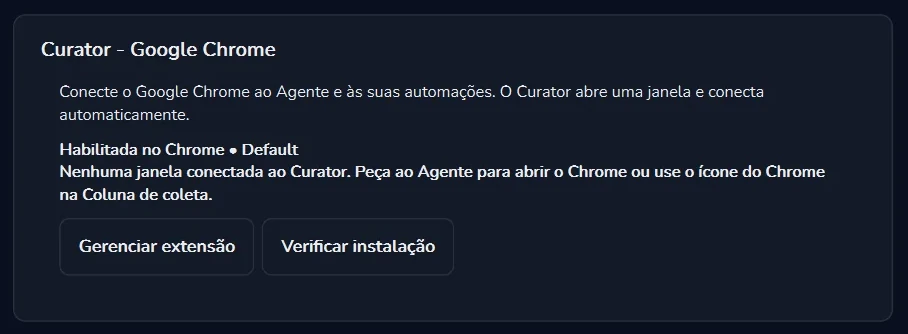
Em “Configurações” → “Google Chrome” você vê o estado da extensão (“Habilitada no Chrome • Default”) e se há uma janela conectada. Sem janela, a tela avisa: “Nenhuma janela conectada ao Curator. Peça ao Agente para abrir o Chrome ou use o ícone do Chrome na Coluna de coleta.” Os botões “Gerenciar extensão” e “Verificar instalação” ajudam quando algo não conecta.
O cartão “Curator - Google Chrome”, sem janela conectada.
Mais estável na 3.2.3: o Curator consulta e ajusta o estado da janela do Chrome que ele abriu (ao maximizá-la, por exemplo, confere que ela ficou maximizada) e recupera a conexão na primeira vez que o Chrome abre. A coleta de elementos e a extensão em detalhe estão em O Chrome e a coleta.
E a sua tela? Quando for mais fácil mostrar do que explicar, use “Indicar na tela”, no cabeçalho da conversa, para indicar na tela o que a IA deve olhar. Fora do navegador, o agente também enxerga o Windows: é o assunto da próxima seção.
Computer Use no WindowsNovo na 3.2
Nem todo processo vive no navegador. Com o Computer Use, o agente usa o computador no Windows: olha a tela e as janelas abertas e faz ações desktop, além das ações no Chrome. As ferramentas de credenciais e as ações desktop continuam disponíveis junto das ferramentas de navegador.
Para entender e conferir o seu robô, o agente pode olhar:
A tela e as janelas abertasO que está aberto no Windows agora, como um sistema desktop ou uma mensagem de erro.
O ChromeA janela do Google Chrome conectada ao Curator.
A filaOs itens que a automação processa. Veja Filas.
A pasta de saída e a configuraçãoPor exemplo, Data/Output e Config.xlsx.
Acompanhar a execução
O agente não inicia a execução pelo chat. Rodar o robô mexe em sistemas e dados de verdade, então essa decisão fica com você. O que ele faz é acompanhar:
Com a automação pronta, o agente pede que você clique em “Executar”.
Você clica em “Executar” na aba “Automação”.
Enquanto o robô roda, o agente acompanha a tela e o Chrome.
Ele pode conferir a fila, a pasta de saída e a configuração, e responde com o que verificou e o próximo passo.
12 itens processados; os arquivos estão em Data/Output.
Passe o mouse para pausar. Clique para ver de novo.
E se o robô quebrar na execução? Ligue o Curador na automação (“Ligado nesta automação”). Se ela quebrar com erro técnico, ele pausa o robô no erro, olha a tela, conserta o código, testa e reexecuta os itens que quebraram. Veja Curador.
Quer testar só um trecho do robô do mesmo jeito que o “Executar” roda? Veja Testar trechos.
E-mails do Outlook
Muito trabalho começa num e-mail: a nota fiscal que chega, o boleto em anexo, o pedido do cliente. O agente pode ler os e-mails das contas do Outlook clássico que você liberar.
Em “Configurações” → “Outlook”, use “Conectar e atualizar contas”.
Escolha quais contas o Agente pode consultar.
Peça na conversa, por exemplo: “Leia as notas fiscais e baixe os anexos”.
Regra
O que significa para você
Consultas enviam os dados ao modelo de IA selecionado.
O conteúdo dos e-mails lidos vai para o modelo da conversa, no provedor da sua chave de API. Libere só as contas que o agente precisa ver.
Alterações na caixa pedem sua confirmação no chat.
Ler é livre; mexer na caixa de e-mail espera o seu sim.
Cada automação usa a conta configurada no projeto.
A conta que o robô usa quando roda é a do projeto, não necessariamente a que você consultou na conversa.
O modelo é o “cérebro” que lê o pedido e decide o próximo passo. Ele vem do provedor da sua chave de API, e o uso dele é cobrado nessa chave, pelo provedor. O Curator cuida do resto: abre o projeto, usa o Chrome e o computador, pede aprovação e guarda a conversa.
Chave de API
Por token, direto ao provedor
Use a sua chave da OpenAI, Anthropic, Google (Gemini), xAI, DeepSeek, Qwen, Moonshot (Kimi), Z.AI ou CompactifAI, e pague o uso por token direto ao provedor.
A chave fica só neste computador. A PYE Tech não a recebe.
A licença do Curator não inclui o uso da IA: ele é cobrado na sua chave.
No seletor de modelo, embaixo do campo de mensagem, escolha o modelo que vai trabalhar na conversa, entre os do provedor da sua chave. Escolha pelo trabalho: um modelo forte para o agente montar e consertar o robô; um mais barato, testado no Benchmark, para tarefas simples e repetitivas.
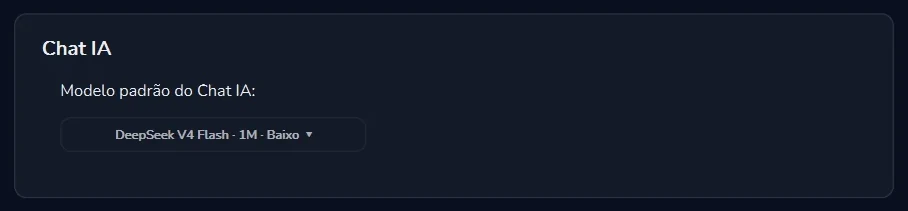
O “Modelo padrão do Chat IA”, em “Configurações” → “Agente”.
Sem escolha: vale o “Modelo padrão do Chat IA”, em “Configurações” → “Agente”. O rótulo traz o nome do modelo, o tamanho do contexto e o nível de esforço, como em “DeepSeek V4 Flash · 1M · Baixo”.
No Curador: o modelo fica em “Motor do Curador” → “Executar com” → “Chave de API”, com o seletor de modelo. Veja Curador.
Modelos novos: o sino de “Notificações” avisa quando chegam, como em “15 novos modelos no Chat”, com o botão “Conhecer modelo”. Veja Notificações.
Os provedores aceitos, onde a chave fica e como o uso é cobrado: Chave de API.
Contexto e custo
Tudo o que o agente “segura na cabeça” numa conversa (as mensagens, os arquivos lidos, os anexos, as páginas e telas que viu) ocupa a memória de trabalho do modelo. O painel “Contexto atual”, no rodapé da coluna “Conversas”, mostra quanto dela já foi usado, por exemplo “33% · 65.9K / 200K”.
Tokens são a unidade de medida do texto que vai e volta do modelo, e é por token que o provedor cobra a sua chave de API. O cartão “Custo” acompanha o custo calculado da conversa; o que vale é a cobrança do provedor, na sua chave.
Contexto e custo
Conversas‹+
Boletos do e-mail13d
Nova conversaagora
Contexto atual
12%24K / 200K
Tokens24K
CustoUS$ 0,09
MensagensArquivos lidosAnexosPáginas e telas
Passe o mouse para pausar. Clique para ver de novo.
Hábitos que deixam o agente melhor e mais leve: uma conversa por assunto; “@” para apontar o arquivo certo em vez de pedir para procurar; Chat para dúvidas rápidas; só os anexos que esclarecem; e uma conversa nova quando a barra de contexto estiver alta. Numa conversa muito longa, o modelo pode perder detalhes do começo: repita o essencial na mensagem atual.
Onde ver o consumo
Na conversa: “Contexto atual”, “Tokens” e “Custo”, no rodapé da coluna e acima do campo.
Nas execuções: a aba “Execuções” tem a coluna “Tokens” para cada execução. Veja Execuções.
No “Uso de IA”: a janela que mostra onde a IA foi usada, com filtros de “Período” e de origem, os cartões “Custo calculado”, “Tokens”, “Entrada” e “Saída”, as abas “Por modelo” e “Histórico” e o botão “Exportar CSV”. Como a própria tela avisa: “Valores calculados, não uma fatura.” O que vale é a cobrança do provedor na sua chave. Veja Uso de IA.
No provedor: a cobrança oficial e os limites da sua chave de API ficam na sua conta do provedor.
O uso do modelo de IA é cobrado na chave de API do próprio cliente, que fica só no computador dele.
Como o trabalho acontece
Você não precisa desta seção para usar o Agente. Ela explica o que pode parecer estranho na tela: por que o agente lê arquivos antes de escrever, por que às vezes para e espera você, e o que sai do seu computador.
Como o trabalho acontece
Você
pede na aba Agente
Curator
no seu PC: projeto, Chrome, Windows
ModeloSua chave de APIpor token, cobrado pelo provedorDeepSeek V4 Flash1M · BaixoModelo padrãoConfigurações → Agente
lê → decide → pergunta a você → age no seu PC → mostra a você
Passe o mouse para pausar. Clique para ver de novo.
São três peças. Você faz o pedido. O Curator, no seu computador, abre o projeto, o Chrome e as janelas, guarda as conversas no histórico local e pede a sua aprovação. O modelo, do provedor da sua chave de API, lê, pensa e decide o próximo passo. O ciclo se repete até o trabalho ficar pronto: o modelo decide, o Curator executa no seu PC e mostra tudo na conversa.
O Curator chama o provedor com a sua chave. A chave fica só neste computador; a PYE Tech não a recebe.
O que sai do seu computador. Para trabalhar, o agente envia ao modelo o seu pedido e o que consultou para responder: trechos do projeto, uma página, um e-mail. A tela do Outlook diz isso com todas as letras: “Consultas enviam os dados ao modelo de IA selecionado.” Já a sua conta, o workspace e o histórico de execuções existem para você entrar, trabalhar em equipe e acompanhar o que rodou. O tratamento de dados segue a LGPD (Lei nº 13.709/2018).
Problemas comuns
Antes da tabela, três perguntas resolvem boa parte dos casos:
O projeto certo está aberto? Confira o nome em “PROJETO ABERTO”.
O modo certo está escolhido? Para mudar a automação, precisa ser Build.
O pedido é específico? “Não está funcionando” rende uma resposta vaga. “O robô para na tela de login, no campo de senha” rende um conserto.
O que você vê
O que fazer
O agente explica, mas não altera nada.
Troque o modo para Build e repita o pedido.
O agente não consegue usar o modelo.
Confira se a sua chave de API está conectada e válida, e se ela tem saldo ou limite disponível no provedor. Veja Problemas com a chave.
A conversa está usando um modelo que você não queria.
Escolha outro no seletor de modelo, embaixo do campo. Para mudar o que vale quando você não escolhe, troque o “Modelo padrão do Chat IA” em “Configurações” → “Agente”.
O “Custo” da conversa está subindo rápido.
Use um modelo mais barato nas tarefas simples (compare no Benchmark), abra uma conversa nova quando o contexto estiver alto e acompanhe em “Uso de IA”.
“Nenhuma janela conectada ao Curator.”
Peça ao agente para abrir o Chrome ou use o ícone do Chrome na “Coluna de coleta”.
O Chrome não conecta.
Em “Configurações” → “Google Chrome”, confira se aparece “Habilitada no Chrome” e use “Verificar instalação” e “Gerenciar extensão”.
A barra de “Contexto atual” está alta e as respostas esquecem detalhes do começo.
Abra uma conversa nova no “+” e repita o essencial na primeira mensagem.
A conta de e-mail não aparece para o agente.
Só o Outlook clássico é compatível (o Novo Outlook não). Em “Configurações” → “Outlook”, use “Conectar e atualizar contas” e libere a conta.
O agente pediu para você clicar em “Executar”.
É assim mesmo: ele não inicia a execução pelo chat. Clique e ele acompanha a tela e o Chrome.
O agente mexeu no projeto errado ou fez o que você não pediu.
Use “Reverter”, confira “PROJETO ABERTO” e refaça o pedido com mais detalhe, usando “@” no arquivo certo.
O robô quebrou durante a execução.
Descreva o erro na conversa, em Build, com o que aparece em “Resultados da Última Execução”. Para a próxima vez, ligue o Curador nesta automação.
Se nada disso resolver, fale com a PYE Tech pelo e-mail contato@pyetech.com.br ou veja a página Suporte. Conte o nome do projeto, o modo, o provedor e o modelo, a mensagem exata que apareceu e o que você pediu em comparação com o que aconteceu.
Resumo
O Agente trabalha no projeto aberto. Confira o nome em “PROJETO ABERTO”.
A IA vem da sua chave de API: você escolhe o modelo, e o provedor cobra o uso nessa chave. A chave fica só neste computador.
O modo manda: Build cria, altera e testa; Plan planeja; Chat conversa.
Confira o botão laranja “Permissões totais” antes de mexer em sistema de verdade.
Responda às perguntas, aprove o que é importante, confira “Alterações” e use “Reverter” se errou.
O agente usa o Google Chrome de verdade, pela extensão, e o Windows, com o Computer Use. E lê o Outlook clássico, se você liberar.
Ele não executa o robô: o “Executar” é seu, e ele acompanha a tela e o Chrome.
Barra de contexto alta? Uma conversa nova, um assunto por conversa.